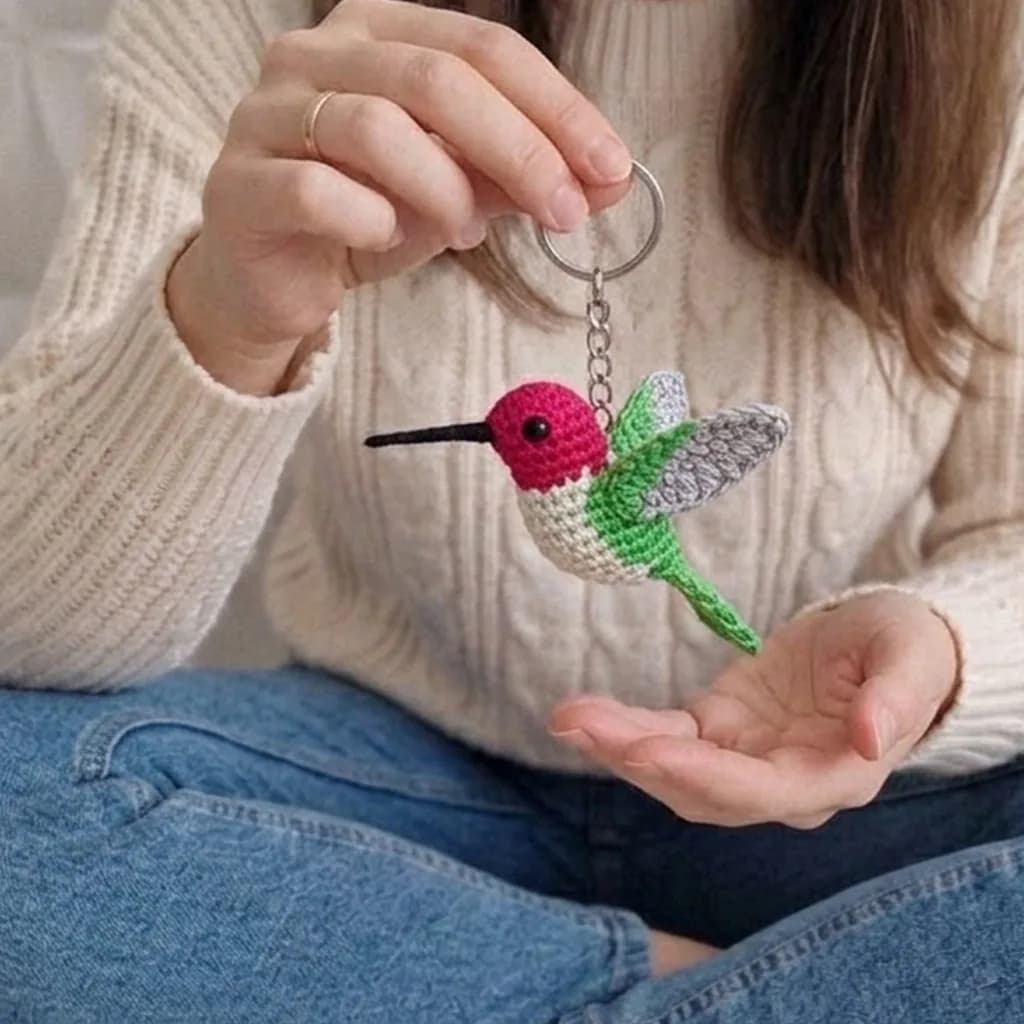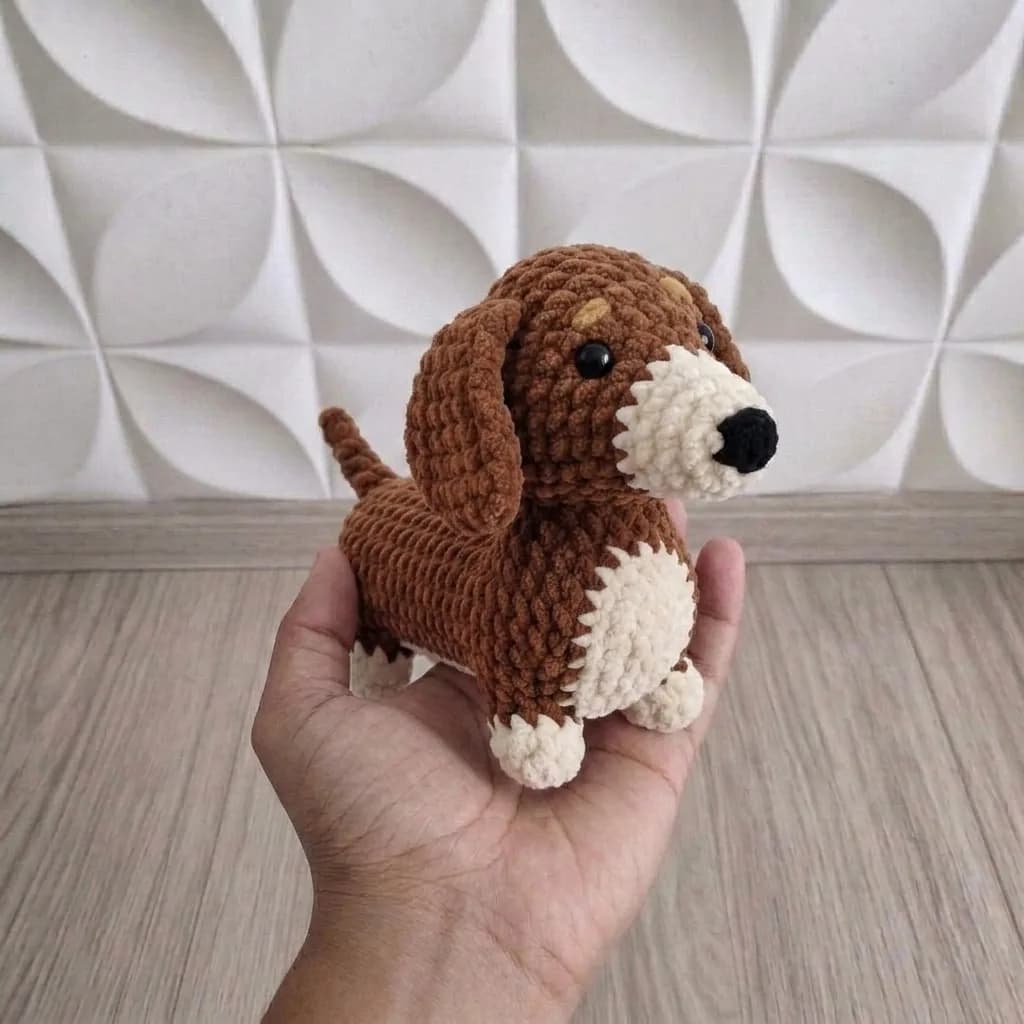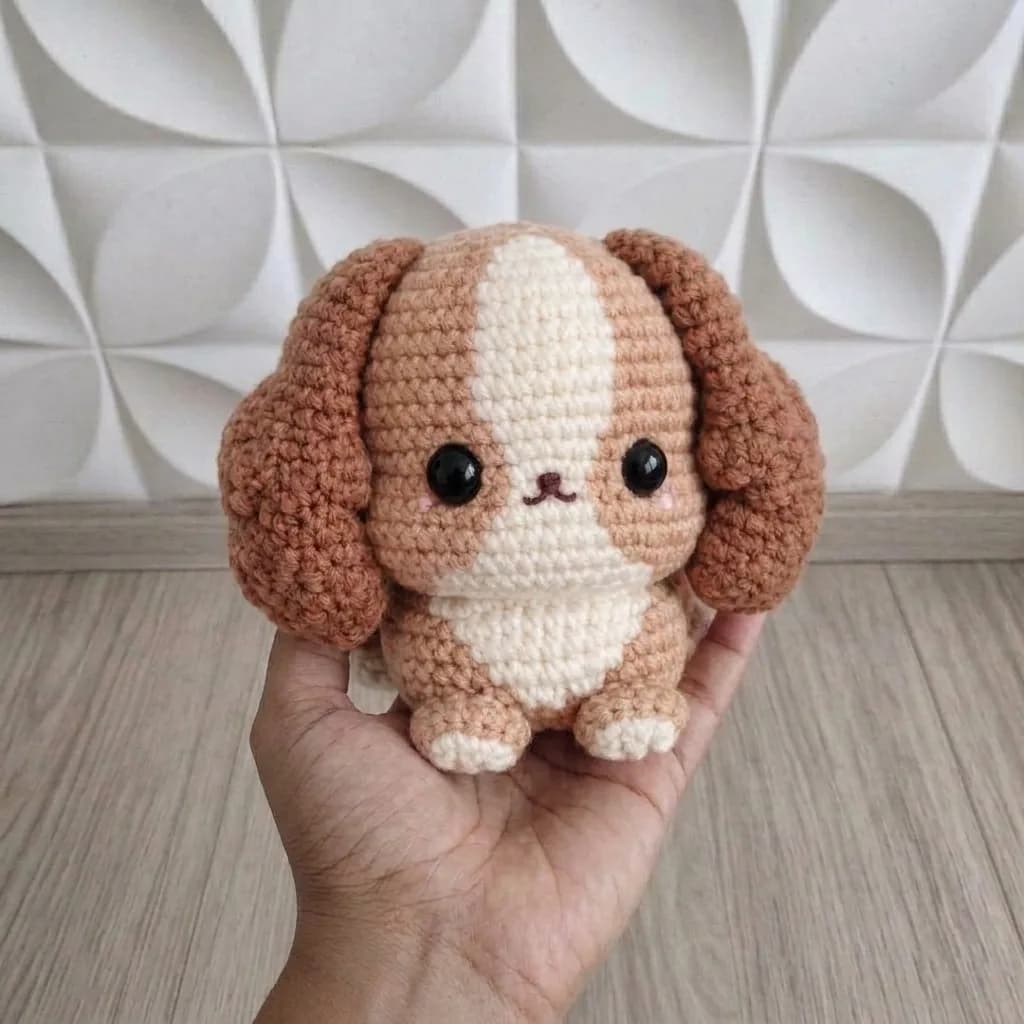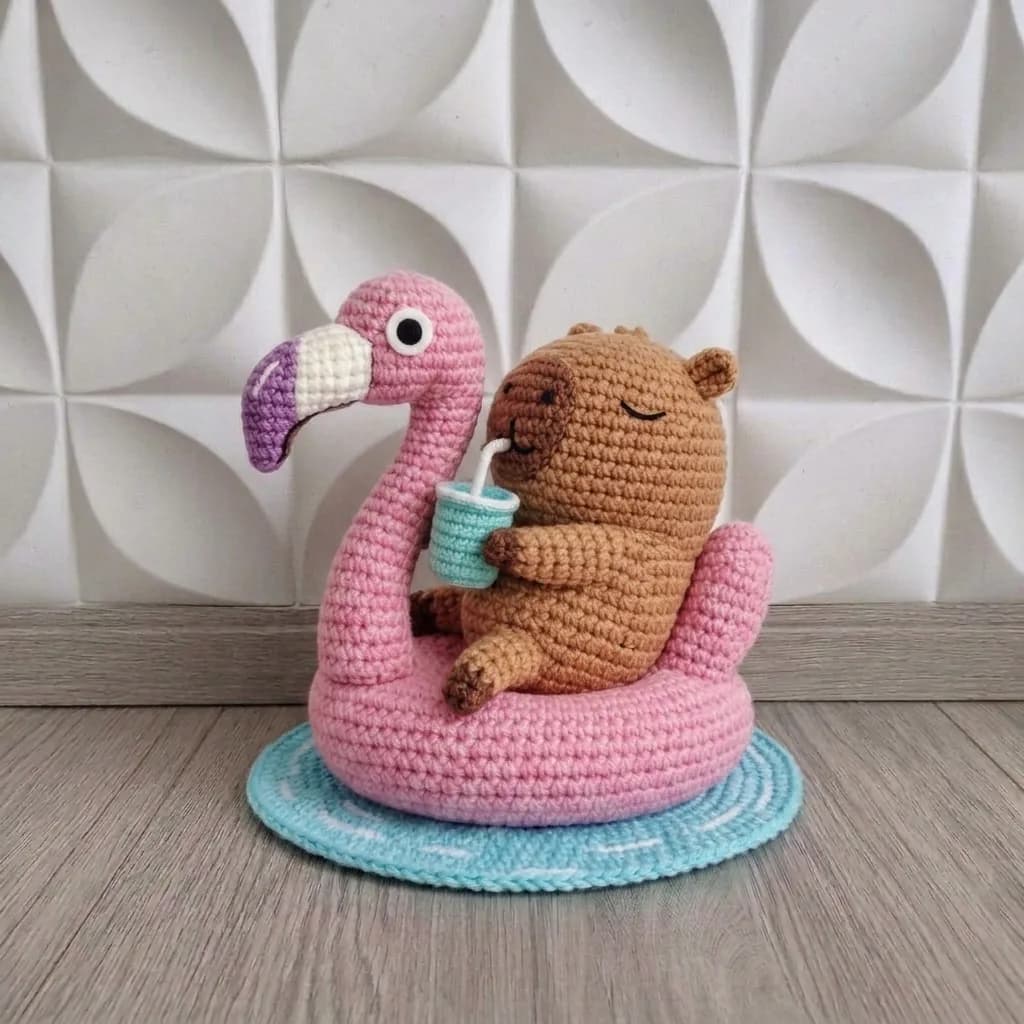
After checkout, your crochet pattern arrives as an instant download PDF. Open the email or the confirmation page from your order, tap or click the download link, and the file saves to your device. From there, open it with any free PDF reader app. No special software is needed.
What "Instant Download" Means for a Crochet Pattern
When you buy a digital crochet pattern, you are buying a file, not a parcel. There is nothing to wait for in the post and nothing to sign for. The pattern arrives as a PDF, a document format that keeps every page looking the same on your phone as it does on a laptop, so the photos, charts and stitch counts stay exactly where the designer put them.
That is why the same design might be described as a crochet pattern, a digital download, or an amigurumi pdf pattern. They all mean the same thing: a file that stays with you, ready to open whenever you want to make the project again.
Because the file lives on your device, you can print it, read it on a tablet propped up beside you, or zoom right in on a fiddly round. Screen readers, paper readers and everyone in between can work the way they prefer.
Step by Step: Finding Your File After Checkout
After a secure checkout, the download is normally ready straight away. Here is the usual path:
- Finish the checkout and let the confirmation screen load.
- Look for a download button or link on that screen and select it.
- Open the inbox for the email address you used at checkout and find the message about your order.
- Select the download link inside that email. If you cannot see the message, check your spam, junk or promotions folder.
- Choose where to save the file if your device asks, or let it go to the default downloads folder.
- Open the file once to check it loads properly before you settle down to craft.
If your order included more than one design, you may see several files, or one file with a few patterns inside it. Sets and crochet pattern bundles work this way, and they are handy if you like having a small library of crochet animal patterns to choose from.
Opening the PDF on Your Phone, Tablet or Computer
You do not need a crochet app. You need a PDF reader, and most devices already have one built in.
On a phone or tablet
- iPhone and iPad: the built-in Books app opens PDFs, and so does the Files app.
- Android: Google Drive or any PDF reader from your app store will open the file.
- If your email shows a preview, tap it and choose "open in" to send the file to your reader.
On a laptop or desktop computer
- Windows: Microsoft Edge opens PDFs, and so does Adobe Acrobat Reader.
- Mac: Preview opens a PDF with a double click.
- Chrome, Firefox and Safari can all show a PDF in a browser tab if you prefer.
Once it is open, use the zoom control to enlarge a chart or photo. A tablet on a stand is a popular setup because your hands stay free for the hook.
Saving, Organising and Printing Your Patterns
A little housekeeping now saves a lot of hunting later.
- Rename the file with the project name so you can spot it again quickly.
- Keep one folder called "Crochet patterns", or a folder per project type.
- If you use an online drive, upload a copy so you can open it from another device.
- Slip printed pages into a plastic sleeve and use a dry-erase marker to tick off rounds.
Working from a screen instead? Turn the brightness down a little and switch on night mode if the pattern is mostly text. Small tweaks like these make longer sessions much kinder on the eyes.
A collection is a gentle way to build a library you can dip into. If you like having plenty of choice saved in one place, an amigurumi pattern collection is a tidy place to start, and many of the projects inside suit a beginner friendly pace.
If the Download Will Not Open
Most hiccups have simple causes. Try these in order:
- Check your connection. A dropped signal partway through can leave an incomplete file.
- Download it again from the original link and replace the old copy.
- Open the file with a different reader app to rule out the app itself.
- Restart your device. It clears more problems than you would expect.
- If the file opens but photos look blank, update your PDF reader.
If the link has stopped working, or the file you received is not the pattern you ordered, get in touch through friendly customer support and describe exactly what you see. Keep your order confirmation handy, as it usually answers most questions in seconds.
Where to Get Help
Support teams can usually sort a download problem quickly when you tell them three things: the email address you used, the name of the pattern, and what happens when you try to open it. "The page is blank" or "I see an error message" is far more useful than "it does not work".
It also helps to mention which device you are on and which app you opened the file with. That is usually enough for someone to point you to the exact step you missed.
Still deciding what to make next? Browsing the store is a pleasant way to spend ten minutes. A crochet outfit pattern such as the Lilac Petal Dress is a lovely change from toys, and small amigurumi projects make satisfying weekend makes.
A Quick Recap
Buy, download, save, open. That is the whole process. Your pattern arrives as a PDF you keep, you open it with a reader your device already has, and you can print the pages you want or work straight from the screen. Keep your files in one folder and every new pattern becomes easy to find.
Frequently Asked Questions
Do I need a special app to open my pattern?
No. Most phones, tablets and computers already have a PDF reader installed. If yours does not, any free reader from your app store will do the job.
Can I print my crochet PDF pattern?
Can I open the file on my phone?
Yes, and it is a common way to work. Open the download link on your phone, save the file, then open it in your reader app and zoom in as needed.
What if the download link stops working?
Contact friendly customer support with your order details and a short description of what happens when you click the link. They can help you get back to your file.
Where do downloaded files usually go?
Most devices save them to a Downloads folder. On phones, look in Files or My Files, and use the search box with the pattern name if you cannot spot it.